x


         |
       various related pages
|
Images
Images are useful for conveying extra information and adding visual appeal to a web site. To add images to
a page in CuteSITE Builder, use the "Insert > Image/Clipart..." command. You can add images in a variety
of file formats, including JPEG, GIF, and BMP.
Resizing and cropping
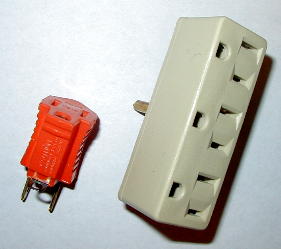 |
 This image was resized and cropped to
 |
 |
If you click on an image in CuteSITE Builder, small "handles" will appear on the corners and sides of the image. You can resize the image by dragging these handles. You can crop an image by choosing "Edit > Image > Crop" and then dragging the image's handles.
You can also change an image by right-clicking on the image and selecting "Properties > Image." Then use
the "Resize" and "Crop" settings to change the image:
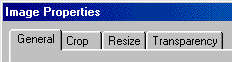
When you publish to the Web, CuteSITE Builder outputs the image at the size you request. If the image was originally large, but was resized to be much smaller, the resulting image file that goes on your web server will be the smaller size also.
The Transparency setting on the Image Properties dialog lets you turn a single color in the image into a mask showing through the background:
 |
An image with no transparency. A similar image with the
 color made transparent. color made transparent. |
 |
GIF vs. JPG
Note that there are different types of image files. You'll get the best results if you know which type to use when.
Web browsers mainly support two different image formats: GIF (pronounced "Jiff") and JPG (also known as JPEG, and pronounced "JAY-peg"). These formats refer to methods for compressing the information that describes the images.
GIF
GIF is best for images that have solid colors, text, and line art. It is good for computer-generated images, such as those produced by a drawing program like Corel Draw. It is also best when the image has detail, like text, where every pixel (dot on the screen) counts. It does well with images that are made up of a limited number of colors. It does not compress photographs very well, especially images that show texture or color gradations, or that are 24-bit color.
JPG (JPEG)
JPG is best for photographs, and scanned photographs, of natural images. JPG gets its good compression
by doing approximations, and is not as good for images where every pixel counts, or when you can get compression by using less than 24-bit color. There are different levels of JPG compression, ranging from little loss of detail and poor compression ("higher quality") to possible loss of detail with great compression ("lower quality"). On web sites, it's often best to use the greater compression, even if it means loss of detail ("lower quality") because it saves download time. The software you use to edit or scan your images often has a setting to control the JPG quality.
Here are some examples to help you choose between the GIF and JPG formats:
GIF is better for solid colors, exact detail, and small text. JPG may lose the details and is often bigger.
|
||||
|
GIF
1,542 bytes
|
 |
 Enlarged detail
|
This is an example of using a GIF for line art. It is compressed well and rendered well.
|
|
JPG
5,433 bytes
|
 |
 Enlarged detail
|
This is an example of using a JPG inappropriately for line art. Note the loss of detail and poor compression.
|
JPG is better for photographs. The same picture as a GIF will probably be bigger (therefore take longer to load in a browser) and look no better or worse.
|
||||
|
GIF
30,327 bytes
About 10 seconds to load @28.8
|
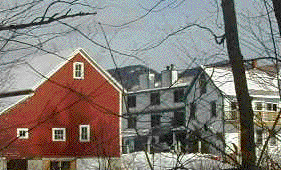 |
This is an example of using a GIF for a photograph. Note the poor compression (almost 2 times bigger than the JPG), and 8-bit 256-color image.
|
|
|
JPG
15,996 bytes
About 6 seconds to load @28.8
|
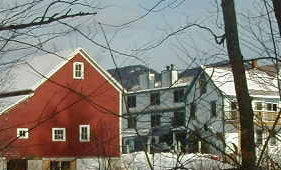 |
This is an example of using a JPG for the same photograph. Note the good compression and 24-bit, full-color image. (You will see the color difference best on a PC with a video card displaying more than 256 colors).
|
|
|
GIF
13,534 bytes
About 5 seconds to load @28.8
|
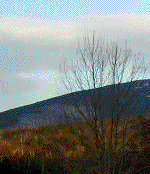 |
This is a more extreme comparison of GIF vs. JPG for a photograph. Note how much more storage space is taken up by the GIF.
|
|
|
JPG
5,822 bytes
About 2 seconds to load @28.8
|
 |
Images like this, with color gradations, show off the benefits of using a JPG. The GIF is 2.3X bigger and looks worse than this JPG.
|
|
Use the lower quality settings for JPG compression. The added detail you get with high quality compression will not be noticeable on web pages, but the larger file size will slow loading substantially.
|
||||
|
High Quality JPG
29,816 bytes
About 10 seconds to load @28.8
|
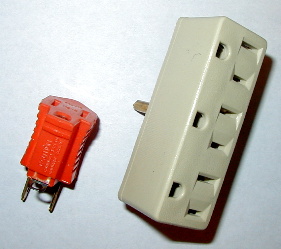 |
This is a JPG compressed with high quality (low loss) compression. Note how much more storage space it takes up than the next image.
Here is an enlarged detail:
 |
|
|
Low Quality JPG
10,939 bytes
About 4 seconds to load @28.8
|
|
This is the same image compressed with low quality (high loss) compression. The difference in quality is not significant for most web sites, but the size reduction is (2.7X).
Here is the detail:
 |
|